GUIDE 01 / DISK SPACE
What is taking up space on your Mac?
When your Mac runs low on storage, identify what is using it before moving files, uninstalling apps, or clearing caches.
1. Check the space macOS reports
On recent macOS versions, open System Settings → General → Storage. On macOS Monterey, use About This Mac → Storage → Manage. Wait for the categories to finish calculating, then see whether apps, documents, or other data account for the space.
Note the available capacity, not just the size of one category. The macOS estimate can include purgeable space. Snapshots, permissions, units, and when a scan runs can also produce differences between tools. Treat differences as clues; they are not automatically space you can delete.
2. Follow familiar folders one level at a time
Start with Downloads, Desktop, Documents, and your project folders. Check names, modification dates, and purpose. A large file is not automatically junk. Leave unfamiliar system directories, photo-library internals, and app databases alone until you understand them.
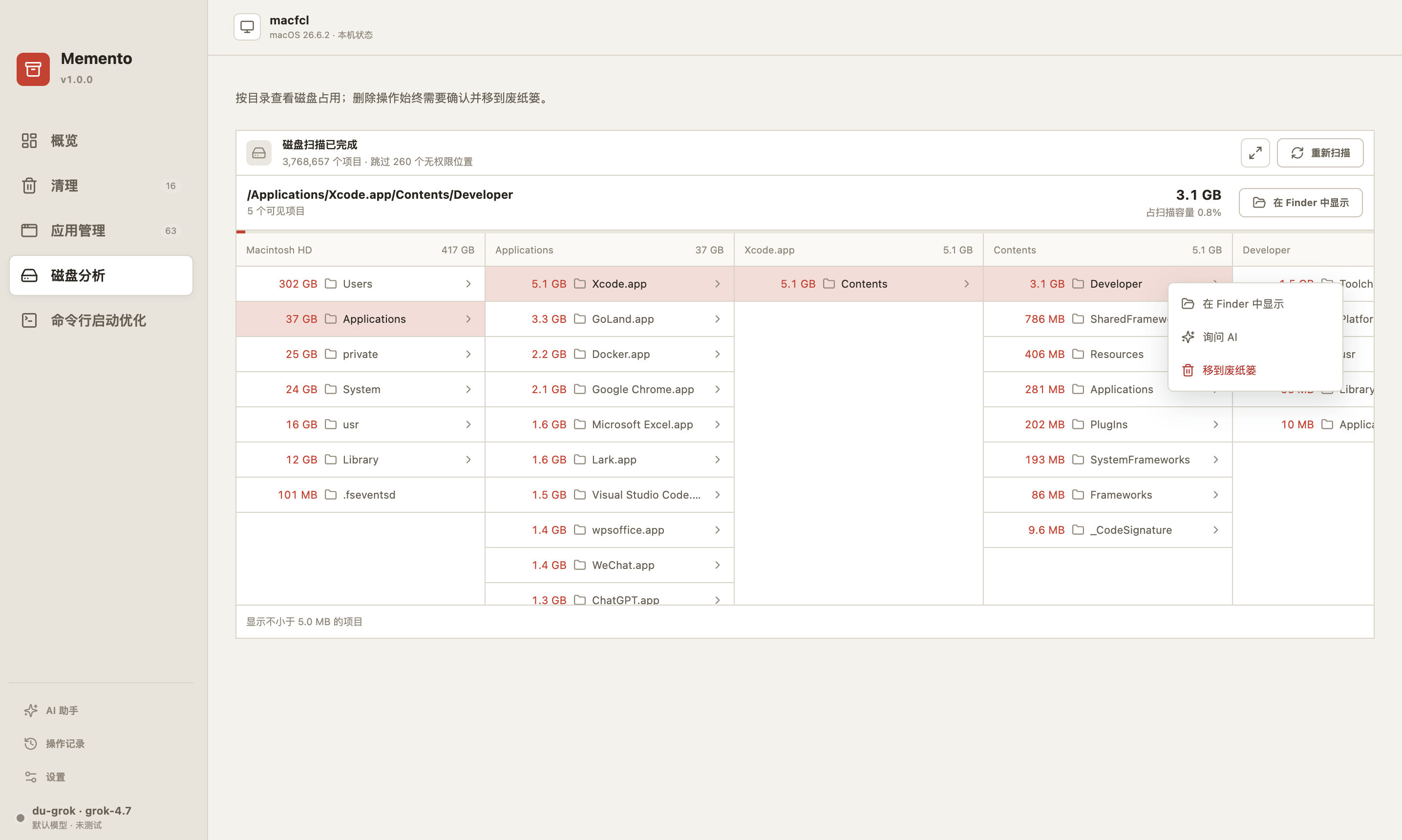
In Memento, open Disk analysis and follow the folder list into the larger subfolders. Reveal a directory in Finder to verify its contents. If a folder cannot be read, inspect its permissions; a missing scan entry does not mean it uses no storage.
Prefer a built-in starting point? Use Finder search conditions to locate larger files. The exact controls vary with macOS, but the goal is the same: identify the file and what owns it before acting.
3. Choose an action based on what the data is for
| What you found | Check before changing it |
|---|---|
| Duplicate installers or old exports | Do you still need them? Is this the only copy? Move uncertain files to external storage first. |
| Apps you rarely use | Check for personal data managed by the app before using a supported removal action. |
| Developer or app caches | Identify the source, whether the data can be rebuilt, and the download or rebuild cost. |
| System folders, databases, photo libraries, or unknown files | Check their purpose and official documentation. Size alone is not a reason to delete them. |
Memento's Cleanup groups findings by category. Read each description and its expected effect before confirming your selection. Moving to Trash and direct cleanup have different recovery limits. AI can help explain an item, but a remote provider receives relevant context; see the AI data explanation.
4. Check the result rather than chasing a number
- Inspect the operation results in Memento and distinguish successful items from failures.
- Rescan the relevant folders and check macOS Storage again. System categories may take time to refresh.
- Files in Trash generally still occupy space. Verify you no longer need them and have necessary backups before deciding to empty it.
- If space disappears again soon, observe which app or workflow is generating data instead of repeatedly clearing the symptom.
The amount recoverable depends on the actual data on your Mac. This guide makes no capacity promise and does not recommend deleting unfamiliar files to get a bigger number.
References and next steps
For Storage settings and capacity guidance, see Apple: Free up storage space on your Mac. Read Memento's recovery limits and source for action-specific behavior. If your main issue is waiting for a terminal prompt, continue with the terminal startup guide.